
Evolving Transmitter

I’ve been busy evolving Transmitter again this evening (after spending all day learning my way around the Felis 747-200 in X-Plane 12 - another story for another day). Quite apart from the recent X-Plane transmitter client, I’ve expanded the capabilities of the radar display rather dramatically.
If you visit the radar display:
You’ll notice the interface has changed. The main menu now branches out into child menu-items, which allows lots of new functionality to be surfaced.
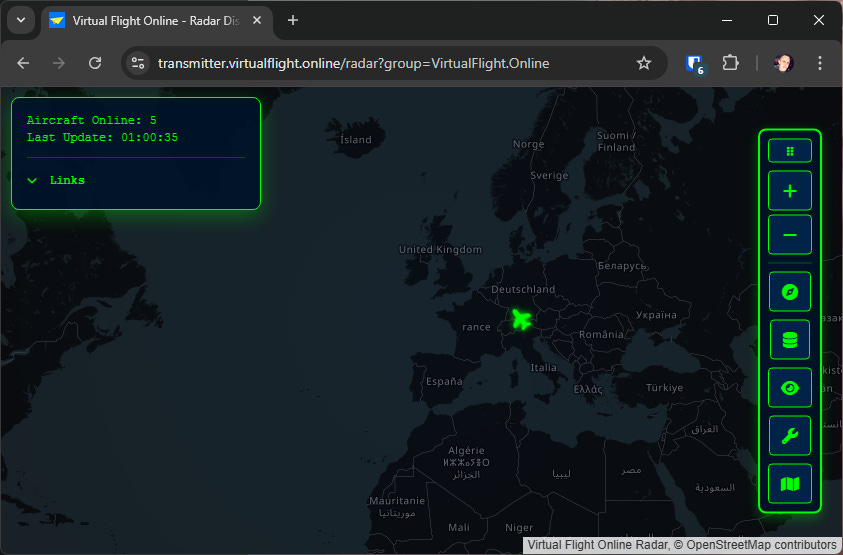
The menu has several top-level icons that expand out to show child icons - it’s worth noting that hovering the mouse over icons tells you what they do with a tool-tip.
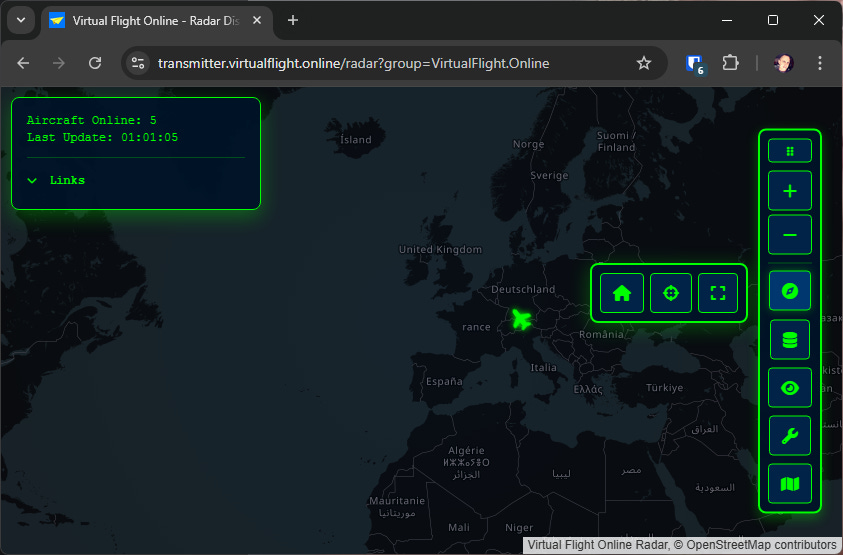
The Navigation icon exposes sub-items for:
Home - re-centers the map to latitude 20, longitude 0
Center - centers the map on all aircraft being displayed
Fullscreen - toggles the browser to go full-screen
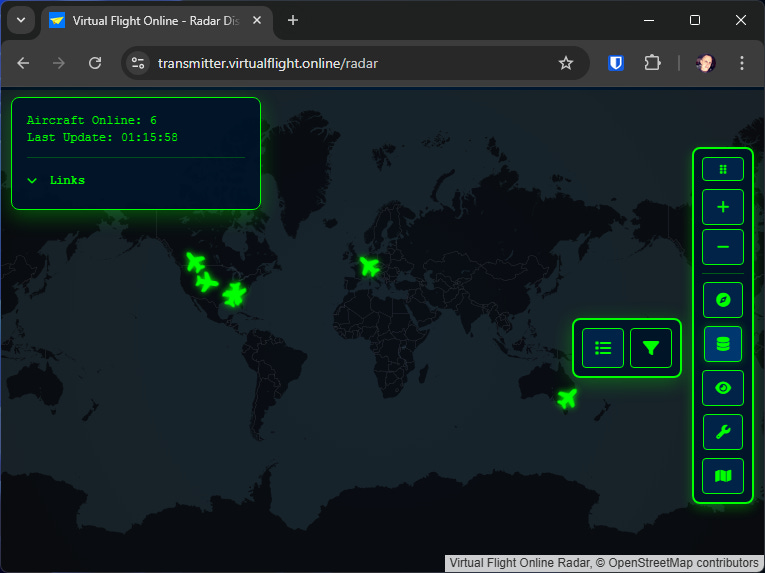
The data and filters icon exposes sub-items for:
Aircraft List - an interactive list of all aircraft currently transmitting. Within it you can hide individual aircraft (click the aircraft icon), and track aircraft (click the target icon).
Filter by Group - an interactive list of groups used by currently transmitting aircraft - allowing you to quickly and easily filter down to groups you are interested in. It has handly “All” and “None” buttons too. It uses cookies to remember your choices here, and can take a single group name in the URL too (e.g. ?group=VirtualFlight.Online)
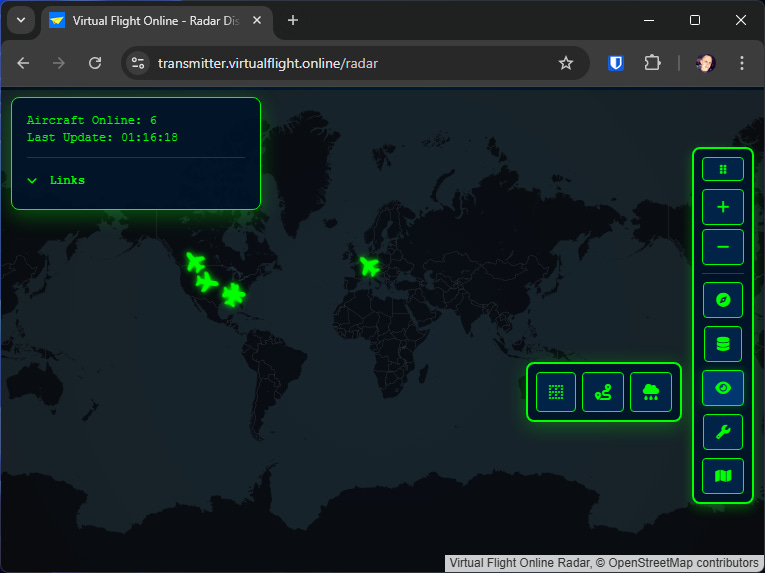
The display icon has options to show:
Coordinate grids - Longitude and Latitude grids, that scale depending on your zoom level (roll the mouse wheel or use the zoom icons to zoom in and out).
Aircraft trails - shows the last 10 positions of each aircraft as a fading dot behind the aircraft.
Weather radar - shows live rainfall on the map
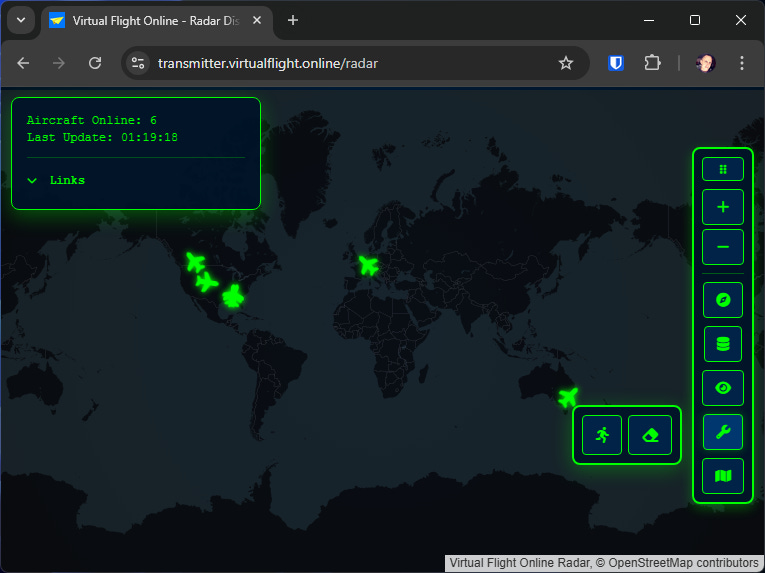
The tools icon has options for:
Smooth movement - interpolates past aircraft positions to animate them smoothly across the display
Eraser - removes measurement lines and radius rings - which raises a good point - did you know you can draw on the map?
Hold the right mouse button down and drag on the map - it will draw a vector line with a heading and distance label. When you release the mouse button it will vanish.
Hold the SHIFT key down with the right mouse button, and drag on the map - it will draw a range ring with a label for it’s radius distance. When you release the mouse button it will vanish.
If you hold the CTRL key down while doing the above, the vector, or radius ring will stay - until you refresh the page, or click the eraser icon.
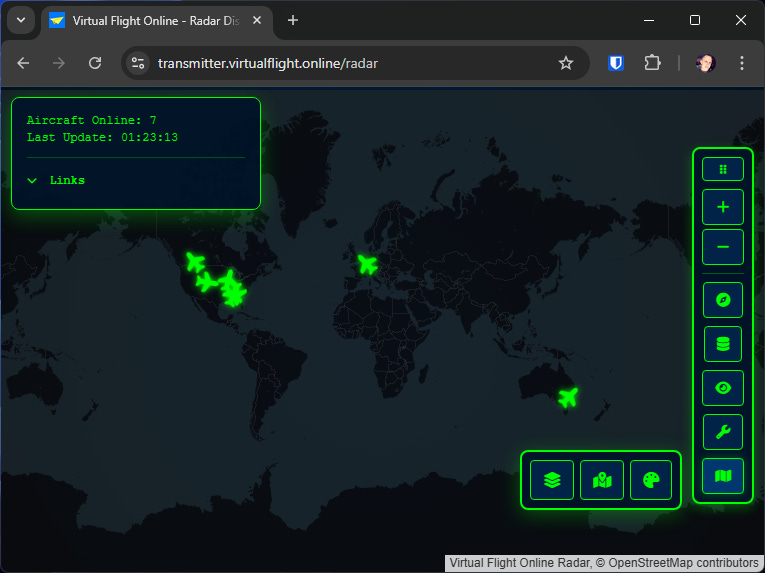
The layers icon shows several map presentation options:
Map Layers - pops up a dialog that lets you pick the style of map you display (choosing between radar, satellite, topo, open street map, etc).
Mapbox - pops up a dialog that lets you enter your MapBox API key (they are free for personal use), and then lets you choose Mapbox maps - which tend to be better than OpenStreetMap.
Color Scheme - pops up a dialog to let you choose the interface colours you want - which is often handy if you choose a particular map style.
One more thing…

While tinkering this afternoon, I thought “wouldn’t it be good if there was a simpler version of the radar to use as an embed.
You would typically use it in an iframe. I’m not going to teach you web development - so you can figure that out for yourself :)
Source code

If you’re interested in seeing how Transmitter does what it does, you can download the source code from Github:
Support me!

If you use Transmitter, and would like to contribute to it’s further development and running costs, you can “buy me a coffee” over at Ko-Fi:
All contributions gratefully received :)